> ## Documentation Index
> Fetch the complete documentation index at: https://docs.quantumvoid.org/llms.txt
> Use this file to discover all available pages before exploring further.
# Trading on the DEX
> Placing limit and market orders on the VOIDX DEX — reading the order book, managing orders, and understanding fees
# Trading on the VOIDX DEX
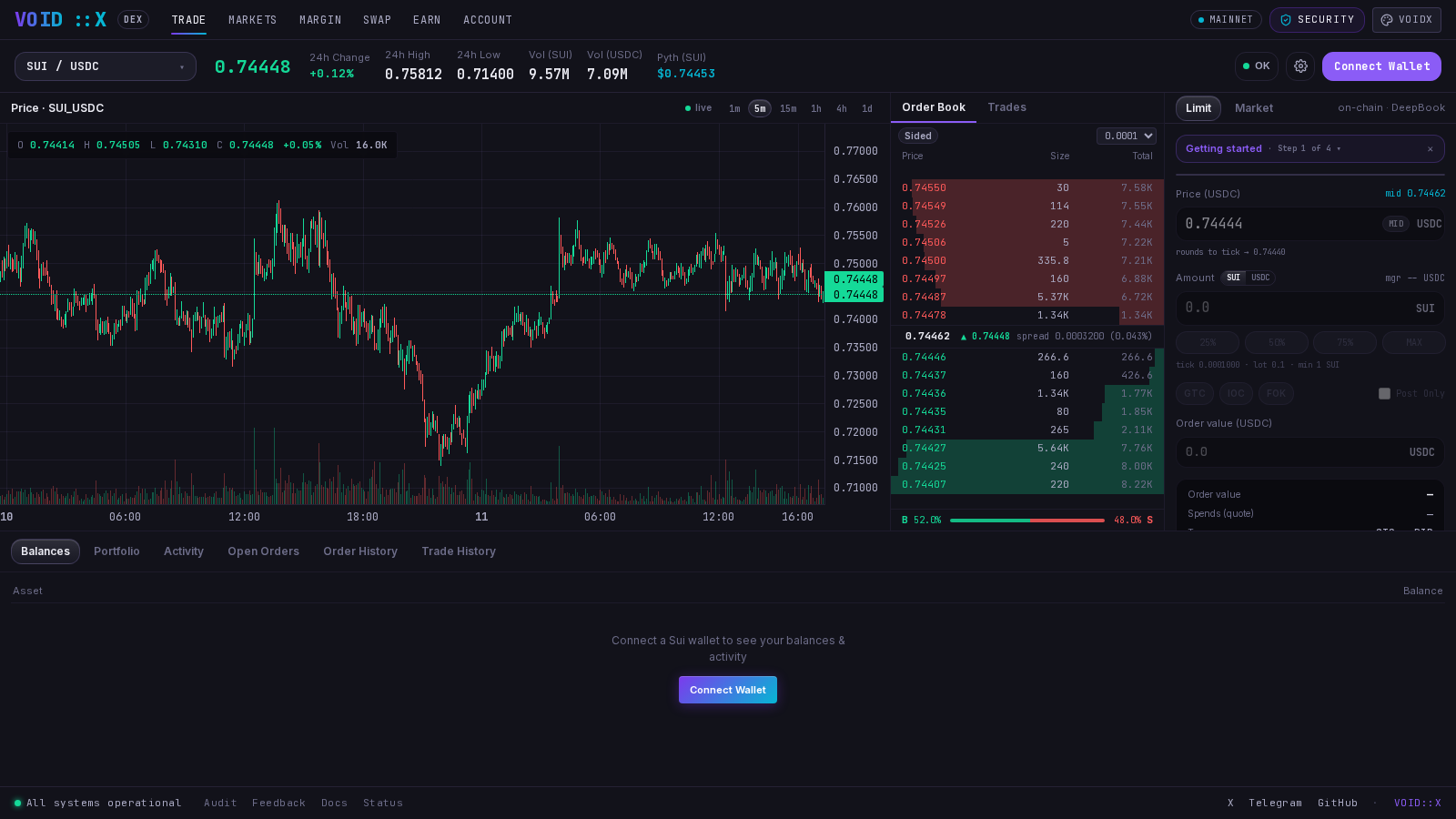
The Trade page at [voidx.trade/dex](https://voidx.trade/dex) is a full order-book terminal for DeepBook markets on Sui. This guide walks through everything from reading the screen to placing, managing, and reviewing orders — assuming you have never used an on-chain order book before.
 ***
## The Layout
* **Market selector & stats bar** — pick a market (e.g. SUI/USDC) and see last price, 24h change, high/low, and volume. A Pyth oracle USD reference price is shown alongside.
* **Chart** — candlestick chart with **1m, 5m, 15m, 1h, 4h, and 1d** timeframes. Shorter timeframes are always available, built live from recent trades; 4h and 1d need the deep candle history service and show an honest "Deep history unavailable" state for markets it doesn't cover yet.
* **Order book & live trades** — real resting bids and asks, plus a live tape of recent fills (green = taker bought, red = taker sold). Clicking a price in the book pre-fills your order ticket.
* **Order ticket** (right side) — where you place **Limit** and **Market** orders.
* **Account panel** (bottom) — tabs for **Balances, Portfolio, Activity, Open Orders, Order History, Trade History**.
The full ticket stays visible even before you connect a wallet, so you can explore the interface freely — inputs simply stay disabled until you connect.
***
## Before Your First Order: the BalanceManager
Limit orders on DeepBook settle through your personal **BalanceManager** — a one-time on-chain trading account controlled only by your wallet (explained in the [Overview](/dex/overview#the-balancemanager-explained-simply)). The order ticket includes a **Getting Started** guide that tracks exactly these steps:
1. **Connect wallet** — sign in with your Sui wallet.
2. **Create trading account** — created automatically on your first order (one extra signature).
3. **Deposit** — fund it from the wallet menu (top right) → BalanceManager.
4. **Trade** — place your first order.
Once all steps are done, the guide collapses to a "Ready to trade" check.
You do **not** need to create the BalanceManager manually. If you place a limit order without one, the UI first asks you to sign a small setup transaction that creates it (costs only gas), then immediately continues to your order. You can also create or import one explicitly from the wallet menu.
***
## Placing a Limit Order
A limit order rests in the book at your chosen price until it fills or you cancel it.
Click **Connect Wallet** and approve in your wallet extension.
Open the wallet menu (top right) and deposit the coin you want to spend into your BalanceManager — the quote coin (e.g. USDC) to buy, the base coin (e.g. SUI) to sell. Limit orders spend from the BalanceManager, not directly from your wallet. You can withdraw back to your wallet at any time.
Select **Buy** or **Sell**. The price field is pre-seeded with the current **mid price** (halfway between best bid and best ask). You can type a price, or click any level in the order book to adopt it. Prices snap to the market's **tick size**.
Enter the quantity in base units, or flip the unit toggle to enter it in quote terms. You can also type directly into the **Order Value** field — the ticket back-solves the quantity from your value and price. Percentage buttons size the order from your available balance. Quantities snap to the market's **lot size**, and orders below the market's **min size** are blocked with a clear warning. The ticket shows the market's tick / lot / min values in its fine print.
* **GTC** (default) — rests until filled or cancelled.
* **IOC** — fills what it can immediately, cancels the rest.
* **FOK** — fills completely and immediately, or not at all.
* **Post-Only** (checkbox) — guarantees your order only *adds* liquidity; it is rejected if it would cross the book. Post-Only overrides the GTC/IOC/FOK selector.
Click the action button to open a **review box** summarizing side, price, quantity, and order value — nothing fires on a single click. Confirm, then sign in your wallet. (If this is your first order, you'll sign the BalanceManager setup first.)
On success the ticket shows the transaction digest with a direct **Suiscan** link. Your resting order appears under **Account → Open Orders**.
The ticket's own fine print states the model exactly: *"Resting order signed by your wallet, custodied by your BalanceManager. Fees paid in the input coin. Manage / cancel from the Account → Open Orders tab."*
***
## Placing a Market Order
Switch the ticket to **Market** to trade immediately against the live book.
Market orders use a different mechanism than limit orders: they are executed as a **manager-less swap** straight from your wallet — no BalanceManager needed, no deposit step. The ticket:
1. Walks the live order book to estimate your fill — expected output, average price, and whether the book has enough depth for your full amount.
2. Applies your **slippage tolerance** (presets 0.1% / 0.5% / 1%, default 0.5%, configurable in DEX settings) to derive a protected minimum output. If the price moves beyond that while your transaction lands, the transaction fails rather than filling at a worse price.
3. Builds the swap, you review and confirm, and sign once in your wallet.
The output and any unused input coins are returned directly to your wallet address. See [Swap](/dex/swap) for the same mechanism in a standalone page.
***
## Managing Orders and Reading Your History
The **Account panel** at the bottom of the trade page (and the full-page version at `/dex/account`) has six tabs:
| Tab | What it shows |
| ----------------- | ----------------------------------------------------------------------------------------------------------------------------------------------------- |
| **Balances** | Wallet and BalanceManager balances for the active market's coins plus SUI, USDC, and DEEP, with Pyth USD valuations |
| **Portfolio** | Position and average cost replayed from your actual fills, realized PnL, and total fees observed |
| **Activity** | Recent actions in this session |
| **Open Orders** | Your live resting orders on the current market, read directly from the chain — with one-click **Cancel** (signed by your wallet) |
| **Order History** | Cross-session order events (Placed / Filled / Canceled / Modified) with price, original, filled, and remaining quantities |
| **Trade History** | Cross-session fills from your perspective — side, **Maker/Taker** role, price, size, value, and the fee you paid (with its asset). Exportable as CSV. |
Order and trade history is fetched from the DeepBook indexer keyed by your BalanceManager ID, so it follows you across sessions and devices. Markets that are not yet indexed (e.g. freshly created permissionless pools) honestly show no history rather than an error.
***
## Fees
* **Trading fees are paid in the input coin** — the coin you are spending (quote coin when buying, base coin when selling). This applies to both limit orders and market orders/swaps. VOIDX does not take custody of fees; they are DeepBook protocol fees handled on-chain as part of the trade.
* DeepBook also supports paying fees in its native DEEP token; the VOIDX ticket places orders with input-coin fees, so **no DEEP balance is required to trade**. Your Trade History shows the exact fee and its asset for every fill.
* Creating a BalanceManager and cancelling orders cost only network gas.
The exact fee *rate* is set by the DeepBook protocol per pool and is not set by VOIDX. Check your **Trade History** tab to see the precise fee charged on each fill.
***
## Troubleshooting
| Message | Meaning |
| --------------------------------------------------- | ----------------------------------------------------------------------------------------------------------------- |
| "Below min size" | Your quantity is under the market's minimum order size — increase it (the min is shown in the ticket fine print). |
| "Post-Only order would cross the book" | Your Post-Only price would have executed immediately — move it away from the touch. |
| "Insufficient manager balance or gas" | Deposit more of the input coin into your BalanceManager, or top up SUI for gas. |
| "Order could not be filled under its time-in-force" | An IOC/FOK order couldn't fill as required — the book moved or lacks depth. |
| "Transaction rejected in wallet" | You declined the signature — nothing happened on-chain. |
***
## The Layout
* **Market selector & stats bar** — pick a market (e.g. SUI/USDC) and see last price, 24h change, high/low, and volume. A Pyth oracle USD reference price is shown alongside.
* **Chart** — candlestick chart with **1m, 5m, 15m, 1h, 4h, and 1d** timeframes. Shorter timeframes are always available, built live from recent trades; 4h and 1d need the deep candle history service and show an honest "Deep history unavailable" state for markets it doesn't cover yet.
* **Order book & live trades** — real resting bids and asks, plus a live tape of recent fills (green = taker bought, red = taker sold). Clicking a price in the book pre-fills your order ticket.
* **Order ticket** (right side) — where you place **Limit** and **Market** orders.
* **Account panel** (bottom) — tabs for **Balances, Portfolio, Activity, Open Orders, Order History, Trade History**.
The full ticket stays visible even before you connect a wallet, so you can explore the interface freely — inputs simply stay disabled until you connect.
***
## Before Your First Order: the BalanceManager
Limit orders on DeepBook settle through your personal **BalanceManager** — a one-time on-chain trading account controlled only by your wallet (explained in the [Overview](/dex/overview#the-balancemanager-explained-simply)). The order ticket includes a **Getting Started** guide that tracks exactly these steps:
1. **Connect wallet** — sign in with your Sui wallet.
2. **Create trading account** — created automatically on your first order (one extra signature).
3. **Deposit** — fund it from the wallet menu (top right) → BalanceManager.
4. **Trade** — place your first order.
Once all steps are done, the guide collapses to a "Ready to trade" check.
You do **not** need to create the BalanceManager manually. If you place a limit order without one, the UI first asks you to sign a small setup transaction that creates it (costs only gas), then immediately continues to your order. You can also create or import one explicitly from the wallet menu.
***
## Placing a Limit Order
A limit order rests in the book at your chosen price until it fills or you cancel it.
Click **Connect Wallet** and approve in your wallet extension.
Open the wallet menu (top right) and deposit the coin you want to spend into your BalanceManager — the quote coin (e.g. USDC) to buy, the base coin (e.g. SUI) to sell. Limit orders spend from the BalanceManager, not directly from your wallet. You can withdraw back to your wallet at any time.
Select **Buy** or **Sell**. The price field is pre-seeded with the current **mid price** (halfway between best bid and best ask). You can type a price, or click any level in the order book to adopt it. Prices snap to the market's **tick size**.
Enter the quantity in base units, or flip the unit toggle to enter it in quote terms. You can also type directly into the **Order Value** field — the ticket back-solves the quantity from your value and price. Percentage buttons size the order from your available balance. Quantities snap to the market's **lot size**, and orders below the market's **min size** are blocked with a clear warning. The ticket shows the market's tick / lot / min values in its fine print.
* **GTC** (default) — rests until filled or cancelled.
* **IOC** — fills what it can immediately, cancels the rest.
* **FOK** — fills completely and immediately, or not at all.
* **Post-Only** (checkbox) — guarantees your order only *adds* liquidity; it is rejected if it would cross the book. Post-Only overrides the GTC/IOC/FOK selector.
Click the action button to open a **review box** summarizing side, price, quantity, and order value — nothing fires on a single click. Confirm, then sign in your wallet. (If this is your first order, you'll sign the BalanceManager setup first.)
On success the ticket shows the transaction digest with a direct **Suiscan** link. Your resting order appears under **Account → Open Orders**.
The ticket's own fine print states the model exactly: *"Resting order signed by your wallet, custodied by your BalanceManager. Fees paid in the input coin. Manage / cancel from the Account → Open Orders tab."*
***
## Placing a Market Order
Switch the ticket to **Market** to trade immediately against the live book.
Market orders use a different mechanism than limit orders: they are executed as a **manager-less swap** straight from your wallet — no BalanceManager needed, no deposit step. The ticket:
1. Walks the live order book to estimate your fill — expected output, average price, and whether the book has enough depth for your full amount.
2. Applies your **slippage tolerance** (presets 0.1% / 0.5% / 1%, default 0.5%, configurable in DEX settings) to derive a protected minimum output. If the price moves beyond that while your transaction lands, the transaction fails rather than filling at a worse price.
3. Builds the swap, you review and confirm, and sign once in your wallet.
The output and any unused input coins are returned directly to your wallet address. See [Swap](/dex/swap) for the same mechanism in a standalone page.
***
## Managing Orders and Reading Your History
The **Account panel** at the bottom of the trade page (and the full-page version at `/dex/account`) has six tabs:
| Tab | What it shows |
| ----------------- | ----------------------------------------------------------------------------------------------------------------------------------------------------- |
| **Balances** | Wallet and BalanceManager balances for the active market's coins plus SUI, USDC, and DEEP, with Pyth USD valuations |
| **Portfolio** | Position and average cost replayed from your actual fills, realized PnL, and total fees observed |
| **Activity** | Recent actions in this session |
| **Open Orders** | Your live resting orders on the current market, read directly from the chain — with one-click **Cancel** (signed by your wallet) |
| **Order History** | Cross-session order events (Placed / Filled / Canceled / Modified) with price, original, filled, and remaining quantities |
| **Trade History** | Cross-session fills from your perspective — side, **Maker/Taker** role, price, size, value, and the fee you paid (with its asset). Exportable as CSV. |
Order and trade history is fetched from the DeepBook indexer keyed by your BalanceManager ID, so it follows you across sessions and devices. Markets that are not yet indexed (e.g. freshly created permissionless pools) honestly show no history rather than an error.
***
## Fees
* **Trading fees are paid in the input coin** — the coin you are spending (quote coin when buying, base coin when selling). This applies to both limit orders and market orders/swaps. VOIDX does not take custody of fees; they are DeepBook protocol fees handled on-chain as part of the trade.
* DeepBook also supports paying fees in its native DEEP token; the VOIDX ticket places orders with input-coin fees, so **no DEEP balance is required to trade**. Your Trade History shows the exact fee and its asset for every fill.
* Creating a BalanceManager and cancelling orders cost only network gas.
The exact fee *rate* is set by the DeepBook protocol per pool and is not set by VOIDX. Check your **Trade History** tab to see the precise fee charged on each fill.
***
## Troubleshooting
| Message | Meaning |
| --------------------------------------------------- | ----------------------------------------------------------------------------------------------------------------- |
| "Below min size" | Your quantity is under the market's minimum order size — increase it (the min is shown in the ticket fine print). |
| "Post-Only order would cross the book" | Your Post-Only price would have executed immediately — move it away from the touch. |
| "Insufficient manager balance or gas" | Deposit more of the input coin into your BalanceManager, or top up SUI for gas. |
| "Order could not be filled under its time-in-force" | An IOC/FOK order couldn't fill as required — the book moved or lacks depth. |
| "Transaction rejected in wallet" | You declined the signature — nothing happened on-chain. |