> ## Documentation Index
> Fetch the complete documentation index at: https://docs.quantumvoid.org/llms.txt
> Use this file to discover all available pages before exploring further.
# Bot Management
> The Bots tab — monitor, start, stop, and configure your deployed trading bots
# Bot Management
The **Bots** tab is where your deployed bots live. It shows everything you are running across all exchanges in one place — live status, PnL, uptime, and order activity — with one-click controls for starting, stopping, configuring, and deleting bots.
To *find new* bots, head to the **[Marketplace](/features/marketplace)** — the Bots tab links to it from a banner at the top, and a **Browse Presets** button opens the preset library directly.
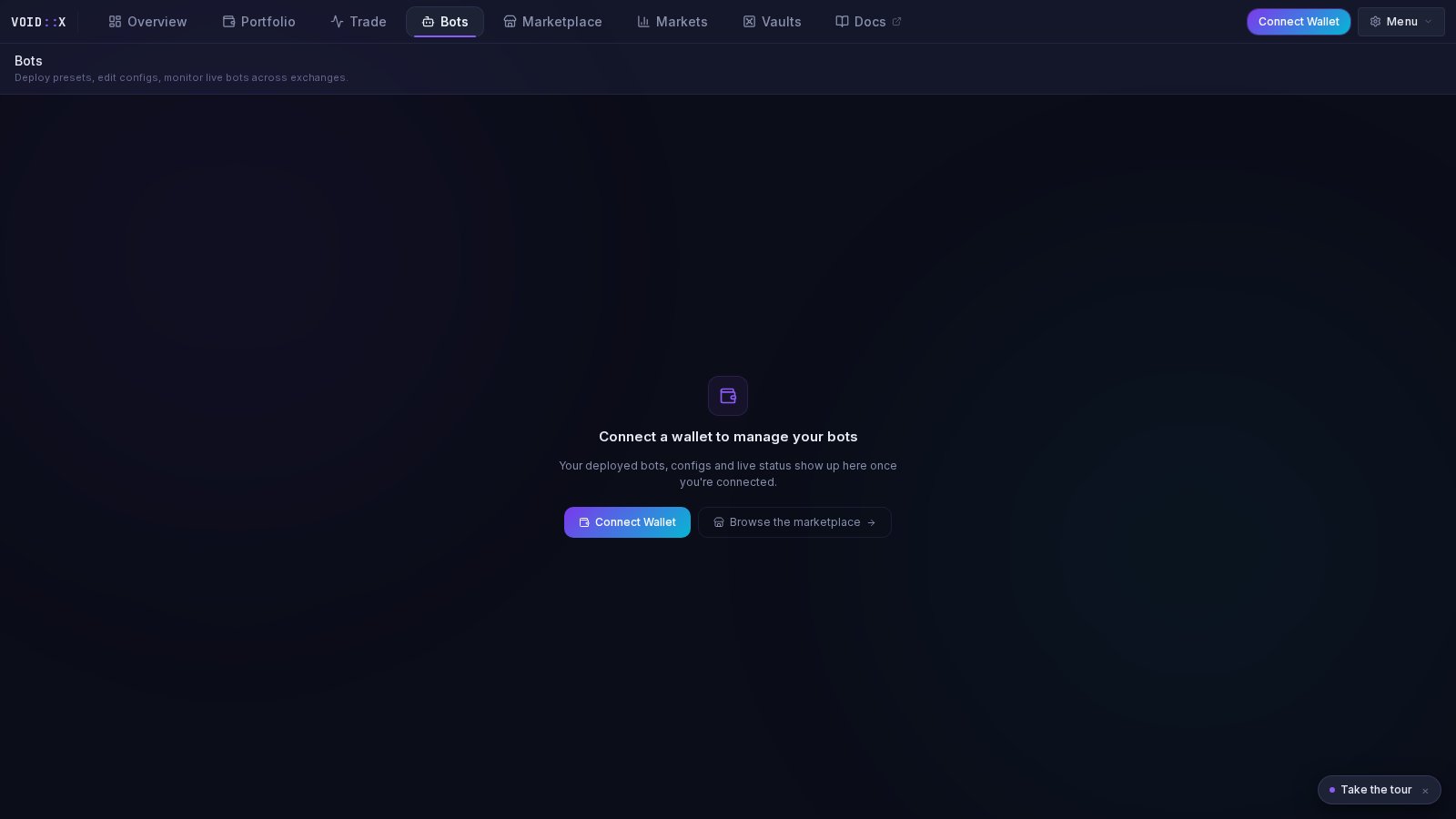 Bot management requires a connected wallet. Guests see a prompt to connect, plus a shortcut to browse the Marketplace catalog in the meantime.
***
## What You See
### Summary Band
A row of stats across the top of the bot list aggregates your whole fleet:
* **Active bots** — running vs. total
* **Combined PnL** — total profit and loss across all bots
* **Open positions** — positions currently held by your bots
* **Exchanges** — which exchanges your bots are deployed on
### Bot Cards
Each bot gets a glassy card showing:
* **Status** — a pulsing green dot while running; muted when stopped, red on error
* **PnL headline** — the bot's profit and loss, front and center
* **Strategy and exchange badges** — what it runs and where
* **Symbol icons** — the trading pairs it manages, with token logos
* **Uptime** — how long it has been running
* **Orders/h** — recent order placement rate
* **Action buttons** — Start, Stop, Settings, Delete
* **Diagnostics expand** — opens an inline panel with details such as uptime and open position count
### Cards / Table Toggle
On desktop you can switch between **Cards** (the default, friendlier view) and **Table** (a dense row layout with Status, Bot Name, Strategy, Exchange, Symbols, Uptime, PnL, Orders/h, and Actions columns — handy when you run many bots). Your choice is remembered.
### Filter Chips
The **My bots** row filters the list: **All**, **Running**, or **Stopped**, each with a live count.
***
## How to Use It
### Deploying a Bot
Click **Deploy New Bot** in the Bots tab header, pick a preset from **Browse Presets**, or deploy straight from the [Marketplace](/features/marketplace) or [Vaults](/features/vaults) — they all feed the same deploy wizard.
The wizard arrives prefilled from the preset you chose. Adjust symbols or settings if you want, or accept the defaults.
Confirm, and the bot starts placing orders through your saved exchange API keys.
### Stopping a Bot
Click the **Stop** button on the bot's card and confirm. The bot stops placing new orders.
Stopping a bot does not close its open positions. Manage or close those yourself from the Trade tab or your exchange.
### Changing Settings
Click the **gear (Settings)** icon on any bot card to open its configuration. Adjust parameters and save — this is also how you turn a vault or marketplace deployment into a custom setup.
### Deleting a Bot
Stopped bots can be removed with the **Delete** action. A confirmation dialog warns you that the configuration is permanently removed — this cannot be undone.
***
## Monitoring Tips
* **Live refresh** — bot status and PnL refresh automatically every few seconds; no manual reload needed.
* **Diagnostics** — expand a card's diagnostics when something looks off; it shows uptime and open position counts straight from the bot.
* **Cross-check with Trade** — the **Bots** tab in the Trade view's bottom drawer shows the same bots next to the live chart, so you can watch a bot's orders against price action.
* **Portfolio view** — the [Portfolio](/features/portfolio) tab ranks your bots by PnL in the Bot performance card.
### Running Multiple Bots
You can run several bots at once — on different symbols of the same exchange, or spread across exchanges. Sensible guardrails:
* Keep total exposure across bots within what your account can support
* Avoid running two strategies that fight each other on the same symbol
* Start small with any new preset and scale up after you have watched it run
***
## Troubleshooting
**Bot won't start**
1. Exchange API keys are saved and valid (check the Add Exchange flow)
2. Your exchange futures wallet has sufficient balance
3. The symbol exists on the selected exchange
**Bot stopped unexpectedly**
1. Check the card's status — an error state shows red
2. Expand diagnostics for details
3. Common causes: insufficient balance for the next order, expired API keys, exchange rate limits
***
## Next Steps
* **[Marketplace](/features/marketplace)** — browse all 41 deployable presets
* **[Vaults](/features/vaults)** — curated one-click deployments
* **[Trading Console](/features/trading-console)** — watch your bots next to the live chart
* **[Bot Configuration Guide](/bot-configuration)** — detailed parameter reference
Bot management requires a connected wallet. Guests see a prompt to connect, plus a shortcut to browse the Marketplace catalog in the meantime.
***
## What You See
### Summary Band
A row of stats across the top of the bot list aggregates your whole fleet:
* **Active bots** — running vs. total
* **Combined PnL** — total profit and loss across all bots
* **Open positions** — positions currently held by your bots
* **Exchanges** — which exchanges your bots are deployed on
### Bot Cards
Each bot gets a glassy card showing:
* **Status** — a pulsing green dot while running; muted when stopped, red on error
* **PnL headline** — the bot's profit and loss, front and center
* **Strategy and exchange badges** — what it runs and where
* **Symbol icons** — the trading pairs it manages, with token logos
* **Uptime** — how long it has been running
* **Orders/h** — recent order placement rate
* **Action buttons** — Start, Stop, Settings, Delete
* **Diagnostics expand** — opens an inline panel with details such as uptime and open position count
### Cards / Table Toggle
On desktop you can switch between **Cards** (the default, friendlier view) and **Table** (a dense row layout with Status, Bot Name, Strategy, Exchange, Symbols, Uptime, PnL, Orders/h, and Actions columns — handy when you run many bots). Your choice is remembered.
### Filter Chips
The **My bots** row filters the list: **All**, **Running**, or **Stopped**, each with a live count.
***
## How to Use It
### Deploying a Bot
Click **Deploy New Bot** in the Bots tab header, pick a preset from **Browse Presets**, or deploy straight from the [Marketplace](/features/marketplace) or [Vaults](/features/vaults) — they all feed the same deploy wizard.
The wizard arrives prefilled from the preset you chose. Adjust symbols or settings if you want, or accept the defaults.
Confirm, and the bot starts placing orders through your saved exchange API keys.
### Stopping a Bot
Click the **Stop** button on the bot's card and confirm. The bot stops placing new orders.
Stopping a bot does not close its open positions. Manage or close those yourself from the Trade tab or your exchange.
### Changing Settings
Click the **gear (Settings)** icon on any bot card to open its configuration. Adjust parameters and save — this is also how you turn a vault or marketplace deployment into a custom setup.
### Deleting a Bot
Stopped bots can be removed with the **Delete** action. A confirmation dialog warns you that the configuration is permanently removed — this cannot be undone.
***
## Monitoring Tips
* **Live refresh** — bot status and PnL refresh automatically every few seconds; no manual reload needed.
* **Diagnostics** — expand a card's diagnostics when something looks off; it shows uptime and open position counts straight from the bot.
* **Cross-check with Trade** — the **Bots** tab in the Trade view's bottom drawer shows the same bots next to the live chart, so you can watch a bot's orders against price action.
* **Portfolio view** — the [Portfolio](/features/portfolio) tab ranks your bots by PnL in the Bot performance card.
### Running Multiple Bots
You can run several bots at once — on different symbols of the same exchange, or spread across exchanges. Sensible guardrails:
* Keep total exposure across bots within what your account can support
* Avoid running two strategies that fight each other on the same symbol
* Start small with any new preset and scale up after you have watched it run
***
## Troubleshooting
**Bot won't start**
1. Exchange API keys are saved and valid (check the Add Exchange flow)
2. Your exchange futures wallet has sufficient balance
3. The symbol exists on the selected exchange
**Bot stopped unexpectedly**
1. Check the card's status — an error state shows red
2. Expand diagnostics for details
3. Common causes: insufficient balance for the next order, expired API keys, exchange rate limits
***
## Next Steps
* **[Marketplace](/features/marketplace)** — browse all 41 deployable presets
* **[Vaults](/features/vaults)** — curated one-click deployments
* **[Trading Console](/features/trading-console)** — watch your bots next to the live chart
* **[Bot Configuration Guide](/bot-configuration)** — detailed parameter reference