> ## Documentation Index
> Fetch the complete documentation index at: https://docs.quantumvoid.org/llms.txt
> Use this file to discover all available pages before exploring further.
# Trading Console
> The Trade tab — live chart, order book, and a full order ticket for manual perp trading
# Trading Console
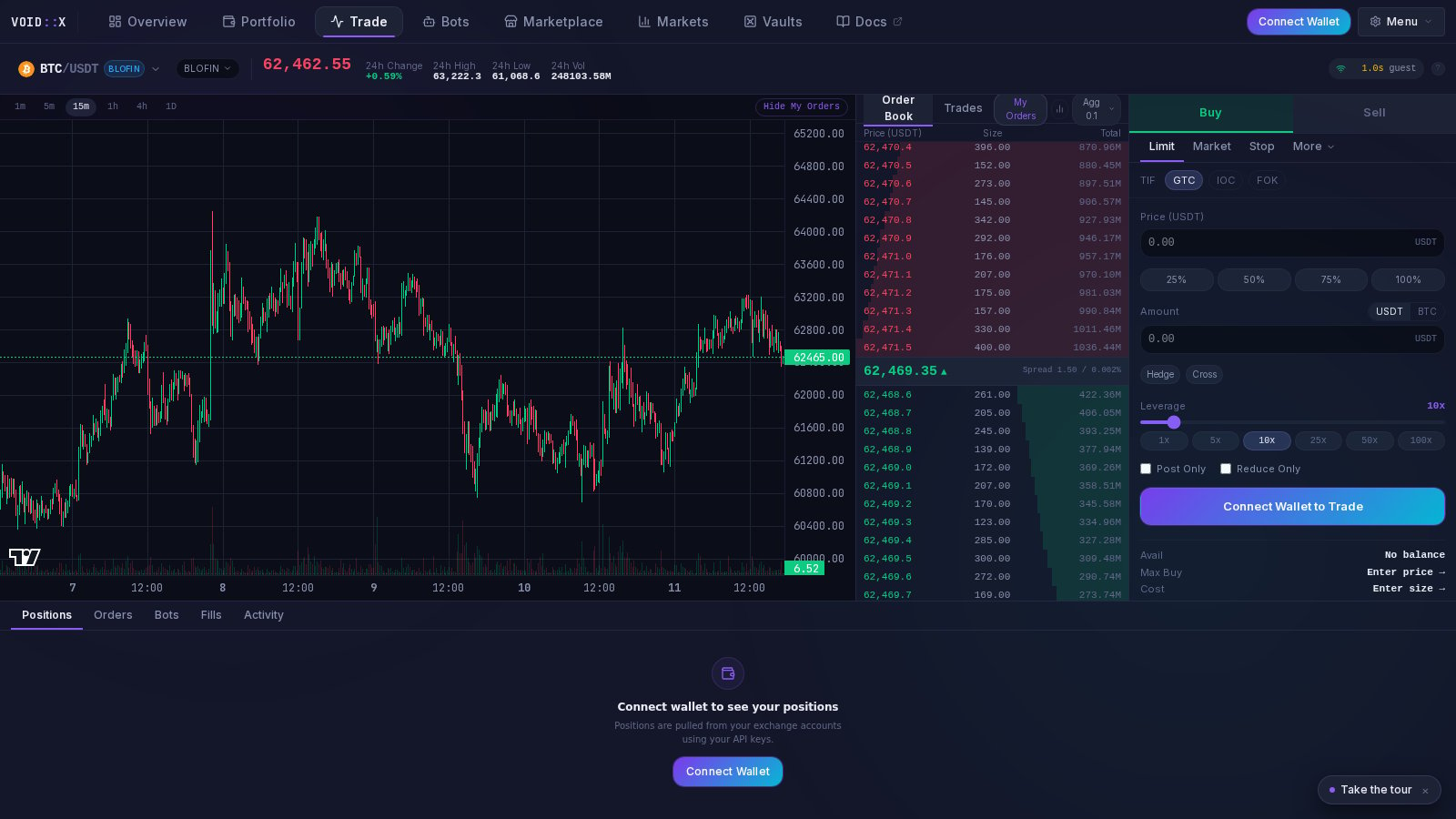
The **Trade** tab is a full manual trading terminal for perpetual futures: a live candlestick chart, a real-time order book, and an order ticket that supports everything from a simple market order to TWAP and scaled-ladder execution. Orders are placed through your own saved exchange API keys.
Guests can explore the whole view — the chart and order book are live. Placing orders requires a connected wallet and saved exchange credentials.
 First time here? A **"Take the tour"** pill appears for new visitors — an optional guided walkthrough that points out each part of the Trade view. Dismiss it any time.
***
## Layout
### Top Ribbon
* **Symbol selector** — search any market, with a **Favorites** section for quick access to the pairs you trade most.
* **Exchange selector** — switch between your connected exchanges; each shows its own equity.
* Logged-out users see a prompt to connect an exchange instead of balance figures.
### Chart
A native candlestick chart with selectable timeframes (1m, 5m, 15m, and more). It refreshes live without yanking your pan/zoom position back to default.
### Order Book Panel
* **Order Book / Trades tabs** — switch between book depth and the live trade tape.
* **My Orders toggle** — highlight your own resting orders inside the book.
* **Price aggregation control** — group price levels into wider buckets to read depth at a glance.
* **Depth toggle** — adjust how much of the book is shown.
### Order Ticket
The right-hand panel where orders are built. Core order types are inline tabs, with advanced execution methods under **More**:
| Method | What it does |
| ----------- | ----------------------------------------------------------------- |
| **Limit** | Resting order at your price |
| **Market** | Immediate fill at the best available price |
| **Stop** | Triggered order once price crosses your level |
| **TWAP** | Splits your size into N slices spread evenly across a time window |
| **Scale** | Ladders multiple limit orders across a price range |
| **Iceberg** | Shows only part of your size at a time |
| **Chase** | Re-prices your order to the top of the book every few seconds |
| **Sniper** | Waits for a trigger price to cross, then fires a market order |
**Ticket controls:**
* **Buy / Sell** side selection
* **Leverage slider** with quick-set buttons; cost and margin impact are estimated live, along with an approximate liquidation price
* **Time in force** — GTC, IOC, or FOK
* **Post Only** — ensures your limit order only adds liquidity (maker)
* **Reduce Only** — order can only shrink an existing position, never open or grow one
* **TP / SL** — attach take-profit and stop-loss brackets to the order
* **Hedge / Cross badges** — the account runs in hedge mode (long and short can coexist on a symbol; required by the bot strategies) and cross margin. Switch to isolated margin from your exchange's own web UI if you need per-position risk caps.
Large orders get a confirmation gate: live orders at **25x leverage or higher**, or with **notional of \$10,000 or more**, ask you to confirm before submission.
### Bottom Drawer
A tabbed drawer along the bottom keeps your account state next to the chart:
| Tab | Contents |
| ------------- | --------------------------------------------------------- |
| **Positions** | Open positions with size, entry, mark, and unrealized PnL |
| **Orders** | Resting orders, with cancel controls |
| **Bots** | Your bots, viewable without leaving the Trade view |
| **Fills** | Recent executions |
| **Activity** | Event feed — fills, bot events, errors |
***
## How to Place an Order
Use the symbol selector (star your regulars as Favorites) and choose the exchange you want to trade on.
Choose an order method, side, price, and size. Use the percentage shortcuts to size relative to your available balance at the current leverage.
Toggle Post Only / Reduce Only, set time in force, and attach TP/SL brackets.
Review the estimated cost, margin impact, and liquidation price, then submit. The order appears in the Orders tab; fills appear in Fills and Positions.
***
## Tips
* **Click into the book** — use the order book to gauge where liquidity sits before placing limit orders; widen the aggregation to see the bigger structure.
* **Markets tab first** — the [Markets scanner](/features/dashboard-overview#the-markets-tab) finds high-volume, high-volatility pairs; clicking a row lands here with the symbol preloaded.
* **Watch bots from the drawer** — the Bots tab in the bottom drawer lets you watch a bot's orders hit the tape on the chart above it.
* **Advanced methods need the engine running** — TWAP, Scale, Iceberg, Chase, and Sniper are executed client-side over time; keep the terminal open while they work.
***
## Related Documentation
* **[Terminal Overview](/features/dashboard-overview)** — the full terminal tour
* **[Bot Management](/features/bot-management)** — manage bots from the Bots tab
* **[Marketplace](/features/marketplace)** — automate instead of trading manually
First time here? A **"Take the tour"** pill appears for new visitors — an optional guided walkthrough that points out each part of the Trade view. Dismiss it any time.
***
## Layout
### Top Ribbon
* **Symbol selector** — search any market, with a **Favorites** section for quick access to the pairs you trade most.
* **Exchange selector** — switch between your connected exchanges; each shows its own equity.
* Logged-out users see a prompt to connect an exchange instead of balance figures.
### Chart
A native candlestick chart with selectable timeframes (1m, 5m, 15m, and more). It refreshes live without yanking your pan/zoom position back to default.
### Order Book Panel
* **Order Book / Trades tabs** — switch between book depth and the live trade tape.
* **My Orders toggle** — highlight your own resting orders inside the book.
* **Price aggregation control** — group price levels into wider buckets to read depth at a glance.
* **Depth toggle** — adjust how much of the book is shown.
### Order Ticket
The right-hand panel where orders are built. Core order types are inline tabs, with advanced execution methods under **More**:
| Method | What it does |
| ----------- | ----------------------------------------------------------------- |
| **Limit** | Resting order at your price |
| **Market** | Immediate fill at the best available price |
| **Stop** | Triggered order once price crosses your level |
| **TWAP** | Splits your size into N slices spread evenly across a time window |
| **Scale** | Ladders multiple limit orders across a price range |
| **Iceberg** | Shows only part of your size at a time |
| **Chase** | Re-prices your order to the top of the book every few seconds |
| **Sniper** | Waits for a trigger price to cross, then fires a market order |
**Ticket controls:**
* **Buy / Sell** side selection
* **Leverage slider** with quick-set buttons; cost and margin impact are estimated live, along with an approximate liquidation price
* **Time in force** — GTC, IOC, or FOK
* **Post Only** — ensures your limit order only adds liquidity (maker)
* **Reduce Only** — order can only shrink an existing position, never open or grow one
* **TP / SL** — attach take-profit and stop-loss brackets to the order
* **Hedge / Cross badges** — the account runs in hedge mode (long and short can coexist on a symbol; required by the bot strategies) and cross margin. Switch to isolated margin from your exchange's own web UI if you need per-position risk caps.
Large orders get a confirmation gate: live orders at **25x leverage or higher**, or with **notional of \$10,000 or more**, ask you to confirm before submission.
### Bottom Drawer
A tabbed drawer along the bottom keeps your account state next to the chart:
| Tab | Contents |
| ------------- | --------------------------------------------------------- |
| **Positions** | Open positions with size, entry, mark, and unrealized PnL |
| **Orders** | Resting orders, with cancel controls |
| **Bots** | Your bots, viewable without leaving the Trade view |
| **Fills** | Recent executions |
| **Activity** | Event feed — fills, bot events, errors |
***
## How to Place an Order
Use the symbol selector (star your regulars as Favorites) and choose the exchange you want to trade on.
Choose an order method, side, price, and size. Use the percentage shortcuts to size relative to your available balance at the current leverage.
Toggle Post Only / Reduce Only, set time in force, and attach TP/SL brackets.
Review the estimated cost, margin impact, and liquidation price, then submit. The order appears in the Orders tab; fills appear in Fills and Positions.
***
## Tips
* **Click into the book** — use the order book to gauge where liquidity sits before placing limit orders; widen the aggregation to see the bigger structure.
* **Markets tab first** — the [Markets scanner](/features/dashboard-overview#the-markets-tab) finds high-volume, high-volatility pairs; clicking a row lands here with the symbol preloaded.
* **Watch bots from the drawer** — the Bots tab in the bottom drawer lets you watch a bot's orders hit the tape on the chart above it.
* **Advanced methods need the engine running** — TWAP, Scale, Iceberg, Chase, and Sniper are executed client-side over time; keep the terminal open while they work.
***
## Related Documentation
* **[Terminal Overview](/features/dashboard-overview)** — the full terminal tour
* **[Bot Management](/features/bot-management)** — manage bots from the Bots tab
* **[Marketplace](/features/marketplace)** — automate instead of trading manually