

Trading on the VOIDX DEX
The Trade page at voidx.trade/dex is a full order-book terminal for DeepBook markets on Sui. This guide walks through everything from reading the screen to placing, managing, and reviewing orders — assuming you have never used an on-chain order book before.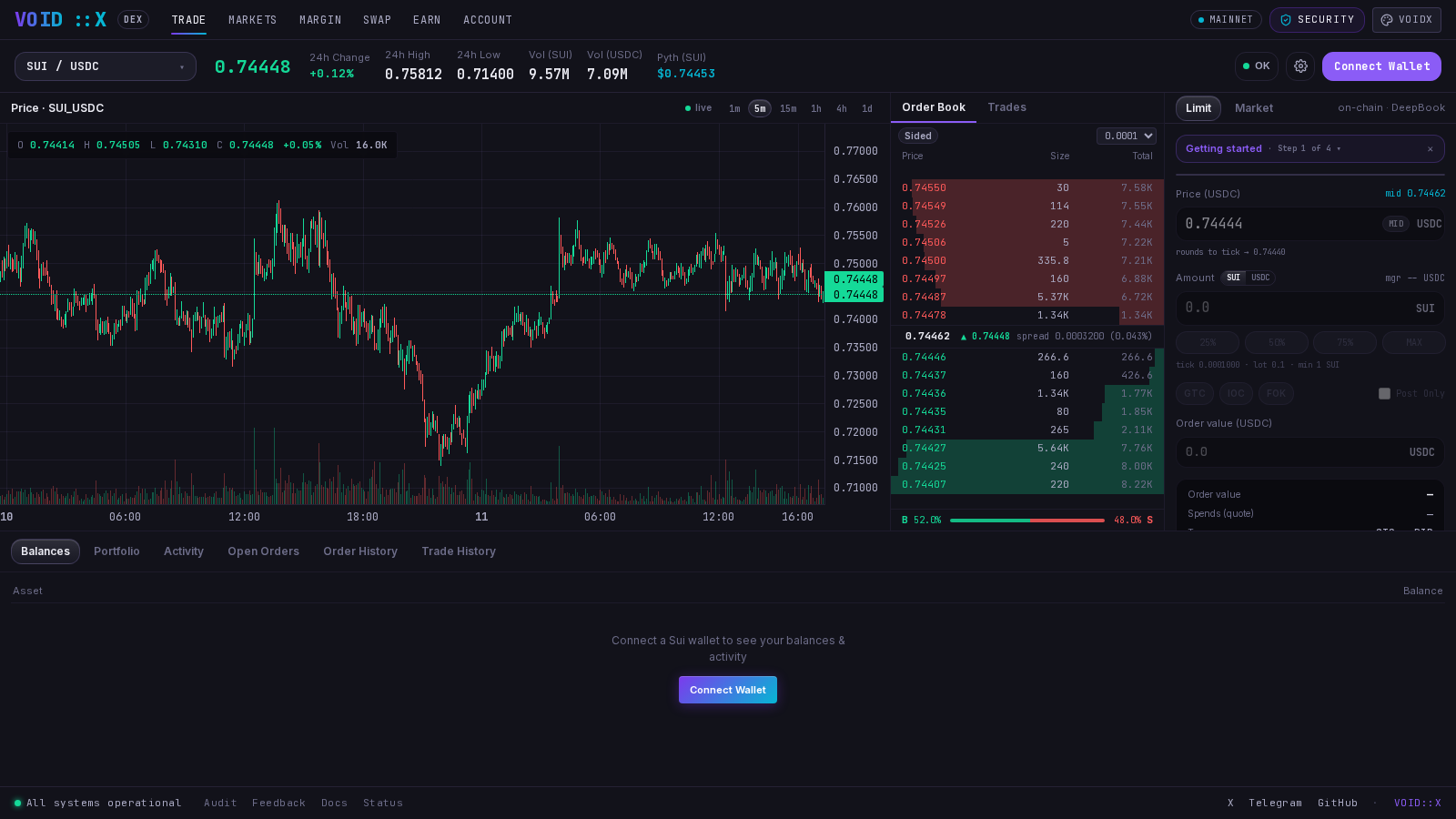
The Layout
- Market selector & stats bar — pick a market (e.g. SUI/USDC) and see last price, 24h change, high/low, and volume. A Pyth oracle USD reference price is shown alongside.
- Chart — candlestick chart with 1m, 5m, 15m, 1h, 4h, and 1d timeframes. Shorter timeframes are always available, built live from recent trades; 4h and 1d need the deep candle history service and show an honest “Deep history unavailable” state for markets it doesn’t cover yet.
- Order book & live trades — real resting bids and asks, plus a live tape of recent fills (green = taker bought, red = taker sold). Clicking a price in the book pre-fills your order ticket.
- Order ticket (right side) — where you place Limit and Market orders.
- Account panel (bottom) — tabs for Balances, Portfolio, Activity, Open Orders, Order History, Trade History.
Before Your First Order: the BalanceManager
Limit orders on DeepBook settle through your personal BalanceManager — a one-time on-chain trading account controlled only by your wallet (explained in the Overview). The order ticket includes a Getting Started guide that tracks exactly these steps:- Connect wallet — sign in with your Sui wallet.
- Create trading account — created automatically on your first order (one extra signature).
- Deposit — fund it from the wallet menu (top right) → BalanceManager.
- Trade — place your first order.
You do not need to create the BalanceManager manually. If you place a limit order without one, the UI first asks you to sign a small setup transaction that creates it (costs only gas), then immediately continues to your order. You can also create or import one explicitly from the wallet menu.
Placing a Limit Order
A limit order rests in the book at your chosen price until it fills or you cancel it.1
Connect your Sui wallet
Click Connect Wallet and approve in your wallet extension.
2
Fund your BalanceManager
Open the wallet menu (top right) and deposit the coin you want to spend into your BalanceManager — the quote coin (e.g. USDC) to buy, the base coin (e.g. SUI) to sell. Limit orders spend from the BalanceManager, not directly from your wallet. You can withdraw back to your wallet at any time.
3
Choose side and price
Select Buy or Sell. The price field is pre-seeded with the current mid price (halfway between best bid and best ask). You can type a price, or click any level in the order book to adopt it. Prices snap to the market’s tick size.
4
Enter the amount
Enter the quantity in base units, or flip the unit toggle to enter it in quote terms. You can also type directly into the Order Value field — the ticket back-solves the quantity from your value and price. Percentage buttons size the order from your available balance. Quantities snap to the market’s lot size, and orders below the market’s min size are blocked with a clear warning. The ticket shows the market’s tick / lot / min values in its fine print.
5
Pick time-in-force (optional)
- GTC (default) — rests until filled or cancelled.
- IOC — fills what it can immediately, cancels the rest.
- FOK — fills completely and immediately, or not at all.
- Post-Only (checkbox) — guarantees your order only adds liquidity; it is rejected if it would cross the book. Post-Only overrides the GTC/IOC/FOK selector.
6
Review and confirm
Click the action button to open a review box summarizing side, price, quantity, and order value — nothing fires on a single click. Confirm, then sign in your wallet. (If this is your first order, you’ll sign the BalanceManager setup first.)
7
Verify on-chain
On success the ticket shows the transaction digest with a direct Suiscan link. Your resting order appears under Account → Open Orders.
Placing a Market Order
Switch the ticket to Market to trade immediately against the live book. Market orders use a different mechanism than limit orders: they are executed as a manager-less swap straight from your wallet — no BalanceManager needed, no deposit step. The ticket:- Walks the live order book to estimate your fill — expected output, average price, and whether the book has enough depth for your full amount.
- Applies your slippage tolerance (presets 0.1% / 0.5% / 1%, default 0.5%, configurable in DEX settings) to derive a protected minimum output. If the price moves beyond that while your transaction lands, the transaction fails rather than filling at a worse price.
- Builds the swap, you review and confirm, and sign once in your wallet.
Managing Orders and Reading Your History
The Account panel at the bottom of the trade page (and the full-page version at/dex/account) has six tabs:
Order and trade history is fetched from the DeepBook indexer keyed by your BalanceManager ID, so it follows you across sessions and devices. Markets that are not yet indexed (e.g. freshly created permissionless pools) honestly show no history rather than an error.
Fees
- Trading fees are paid in the input coin — the coin you are spending (quote coin when buying, base coin when selling). This applies to both limit orders and market orders/swaps. VOIDX does not take custody of fees; they are DeepBook protocol fees handled on-chain as part of the trade.
- DeepBook also supports paying fees in its native DEEP token; the VOIDX ticket places orders with input-coin fees, so no DEEP balance is required to trade. Your Trade History shows the exact fee and its asset for every fill.
- Creating a BalanceManager and cancelling orders cost only network gas.